Ubuntu Server is one of the most popular Linux server distributions out there, and for good reason — it’s stable, well-documented, and has a massive community behind it. I’ve been running it across most of my homelab servers for years and it’s always been my go-to when I need a reliable base to build on top of.
With the release of Ubuntu Server 26.04 LTS, I figured it was a good time to put together a fresh installation guide. If you’ve installed Ubuntu Server before, the process will feel familiar, but there are a couple of small differences in the 26.04 installer worth calling out — most notably that IPv6 is now enabled by default, which can catch you off guard during network configuration.
This guide will walk you through the entire process from downloading the ISO to logging into your newly installed server for the first time. I’ll also cover how to make sure you’re using the full available disk space, since the installer doesn’t do that automatically by default.
Downloading ISO
Here is the direct link to the Download Ubuntu Server website: https://ubuntu.com/download/server
To download the ISO file, simple click the “Download” button.
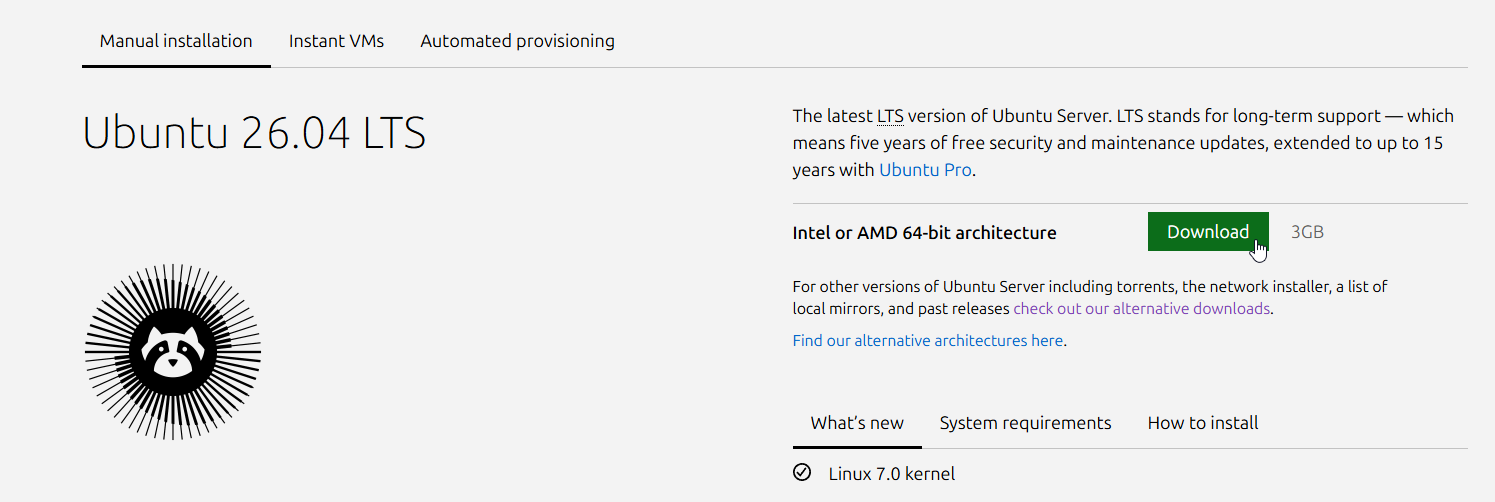
If you choose to download it using Torrents to ease the load on their servers, scroll down to the “Alternative downloads” section and grab the torrent file.
You can also find the 24.04.4 & 22.04.5 LTS versions down there.
Once you click the button, give it a few seconds to start downloading. Once finished, put it somewhere your hypervisor of choice can access it. If you are installing it on bare metal, you can flash it to a USB drive with a utility like Rufus.
Then simply boot the server onto the install media.
Minimum System Requirements
Before getting started, make sure the machine you’re installing Ubuntu Server on meets the minimum requirements. These are the specs for a standard ISO-based install:
| Component | Minimum | Recommended |
|---|---|---|
| CPU | 64-bit (x86-64) processor | — |
| RAM | 1.5 GB | 3 GB |
| Storage | 5 GB | 25 GB |
Keep in mind the recommended specs are just the baseline to get the OS running. Depending on what you plan to run on the server, you’ll likely want more RAM and storage than the minimums listed here.
Installing OS
The first screen you should see is the GNU GRUB boot manager. Press “Enter” to select “Try or Install Ubuntu Server” or wait 30 seconds for it to load automatically.
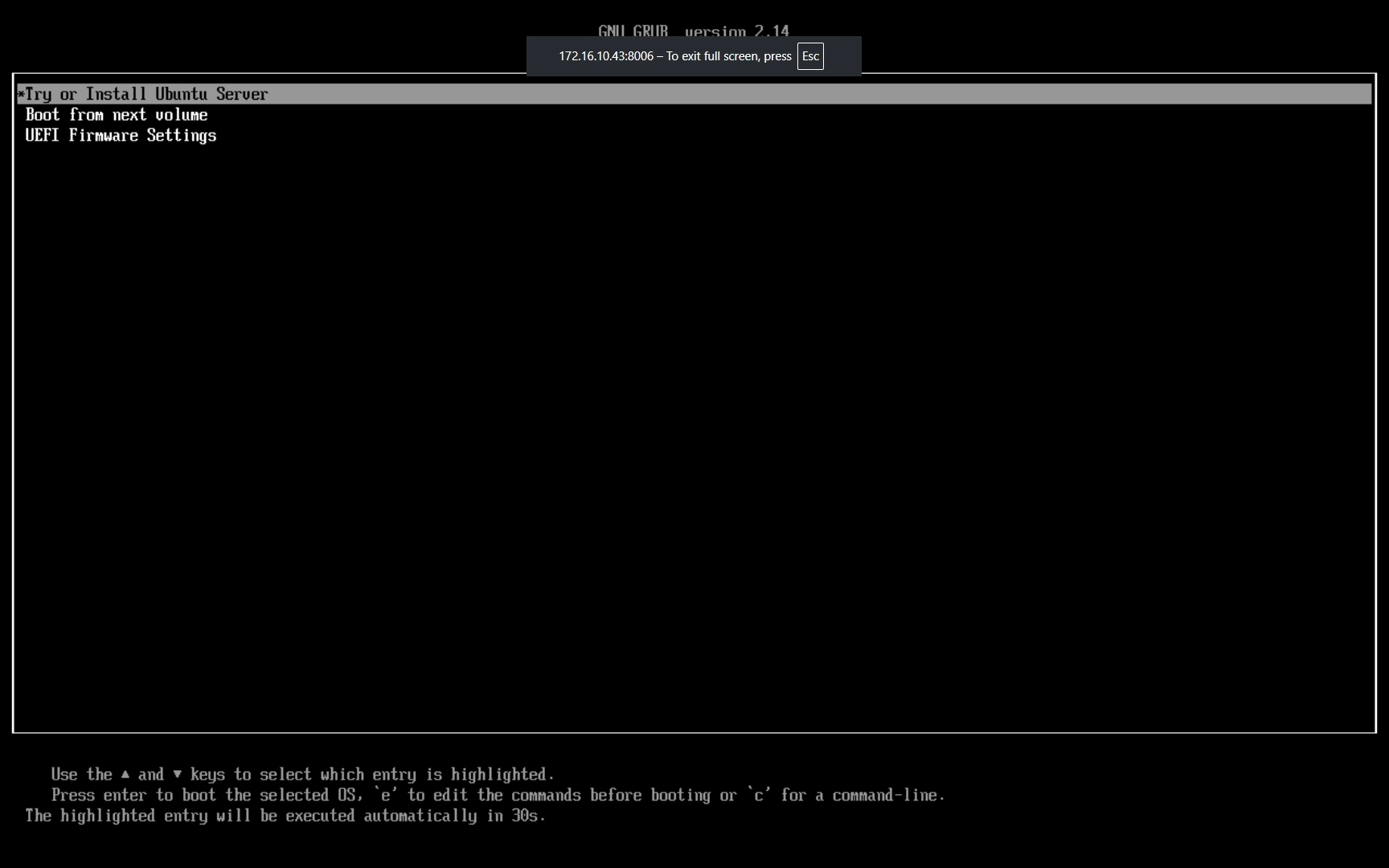
Wait for the server to load all the files into memory and load the install interface.
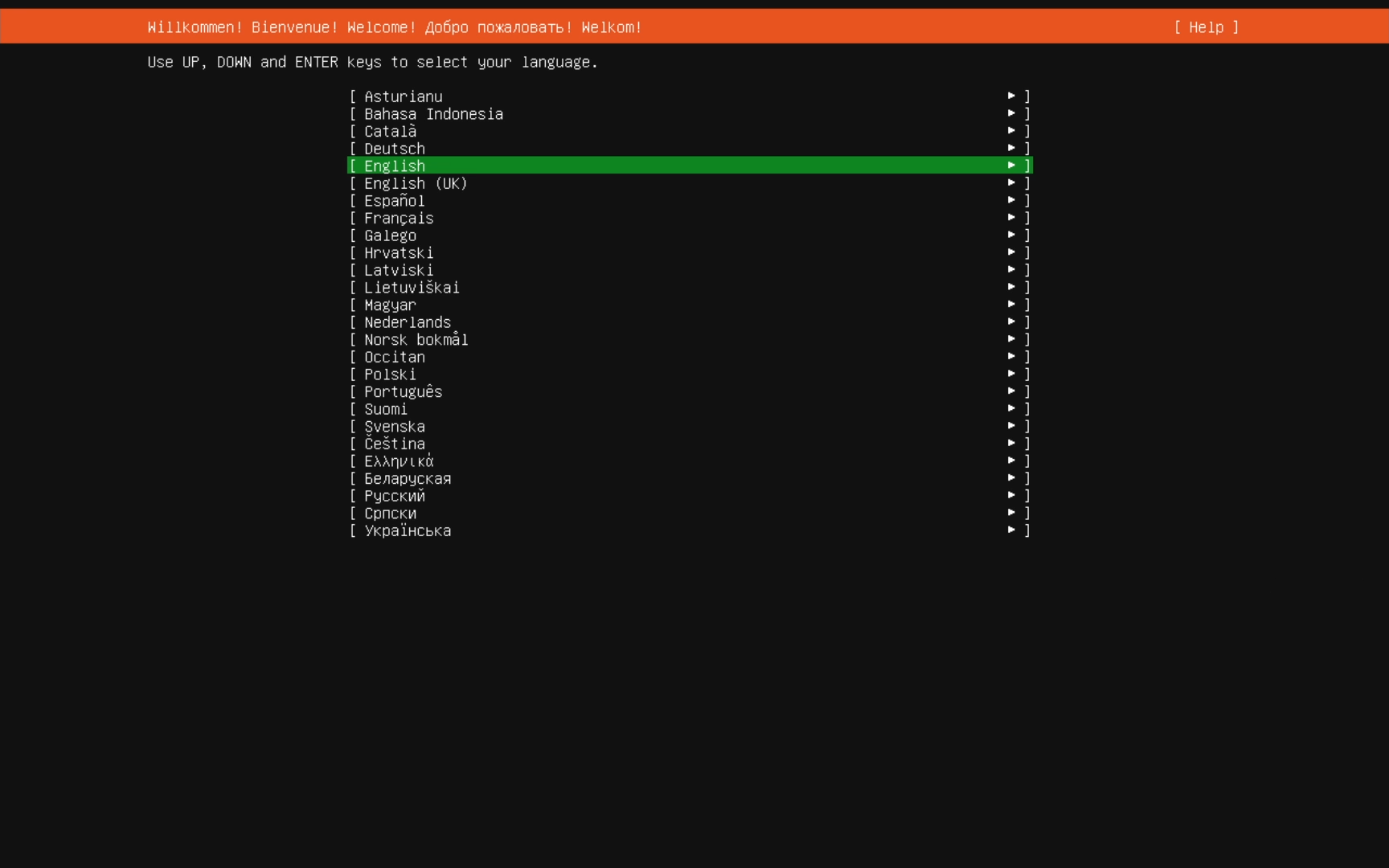
The first screen you will see is the Welcome screen where you can select the language that you want the installer to use. Select your language if it is something other than English and press “Enter” to continue.
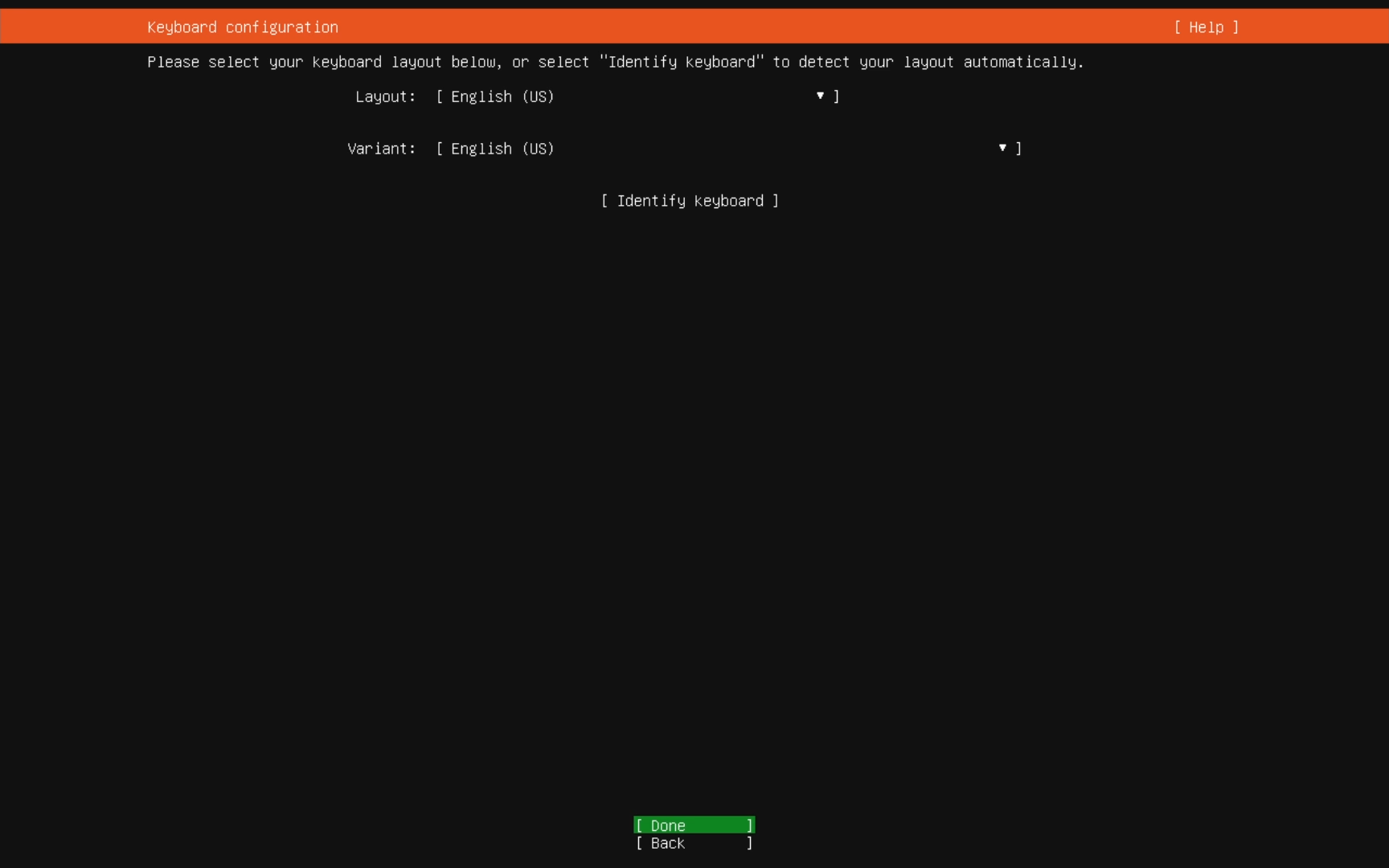
On the “Keyboard configuration” screen, select your layout if it is something other than English (US) and press “Enter” to continue.
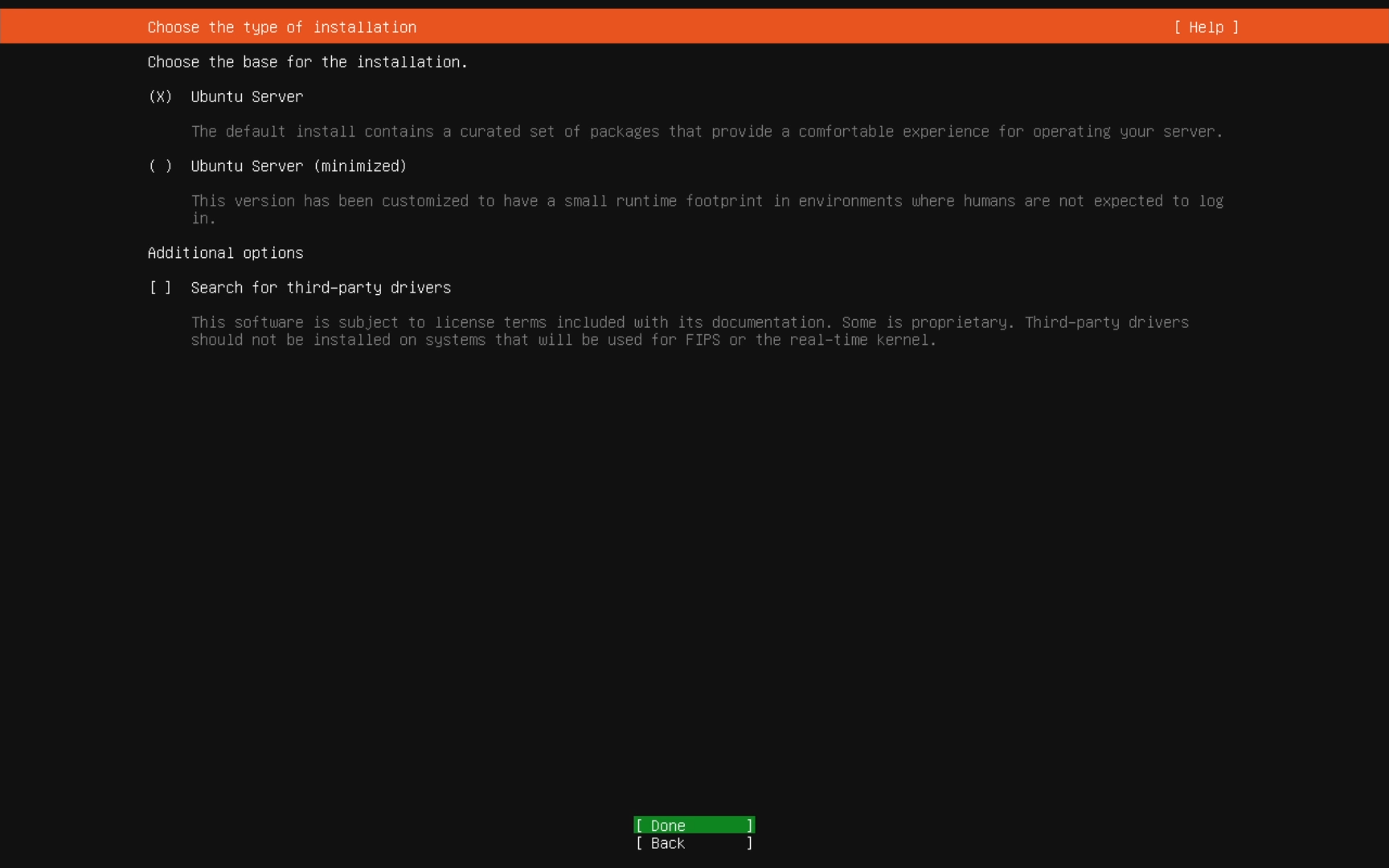
On the “Choose the type of installation” screen, select either the full install of the OS or you can select the “minimized” version if you know what you are doing and are using this server for a specific task. I recommend just doing the full install. Arrow down to “Done” and press “Enter” to proceed.
You can also have the installer “Search for third-party drivers”. I have no need for this and I’m pretty sure most people don’t so just skip this and see if your install works fine without it. I haven’t had an installation fail yet because of drivers.
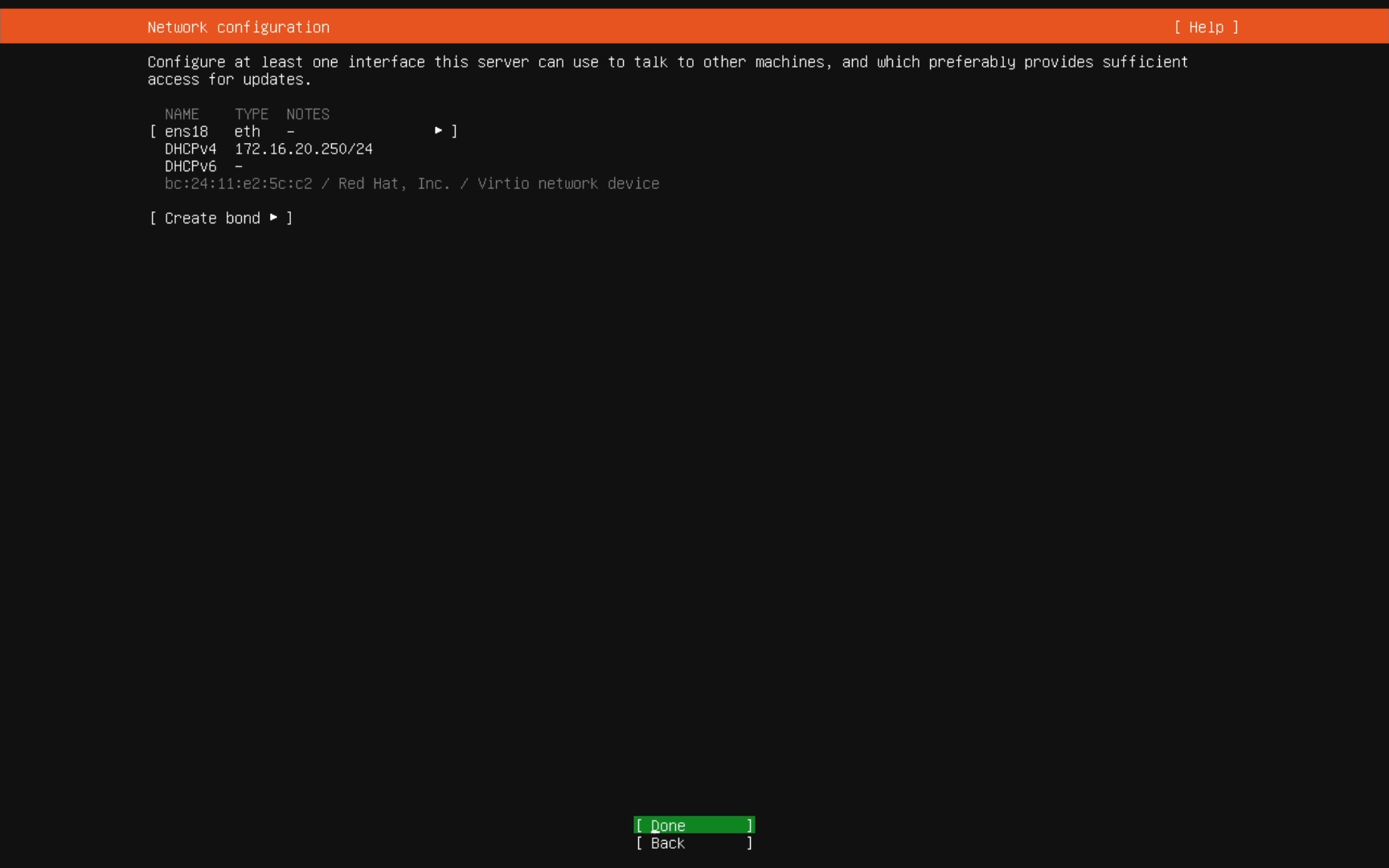
On the “Network configuration” screen, you will want to setup the network interface with the IP and DNS settings for the server. If you have DHCP setup on the network the server is on, it will pull the information automatically. Since this is a server, it is usually recommended to set a static IP address so it doesn’t accidentally change and you loose connection.
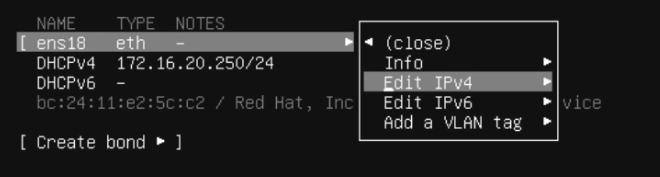
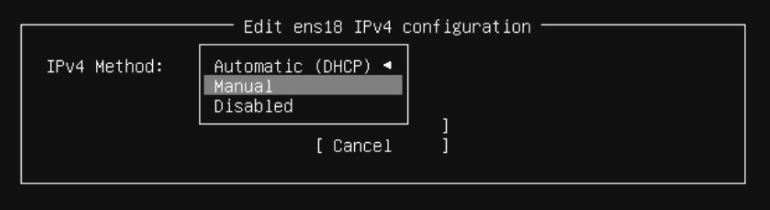
To set a static IP, select the interface you want to edit and arrow down to “Edit IPv4” and press “Enter”.
With “Automatic (DHCP)” highlighted, press “Enter”.
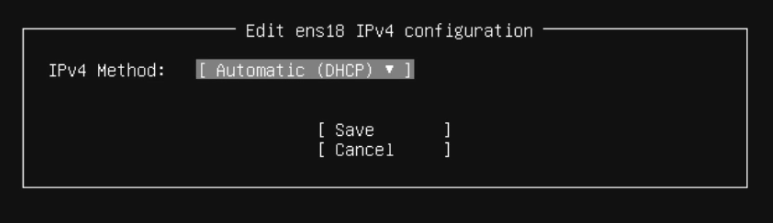
Arrow down to “Manual” and press “Enter”.
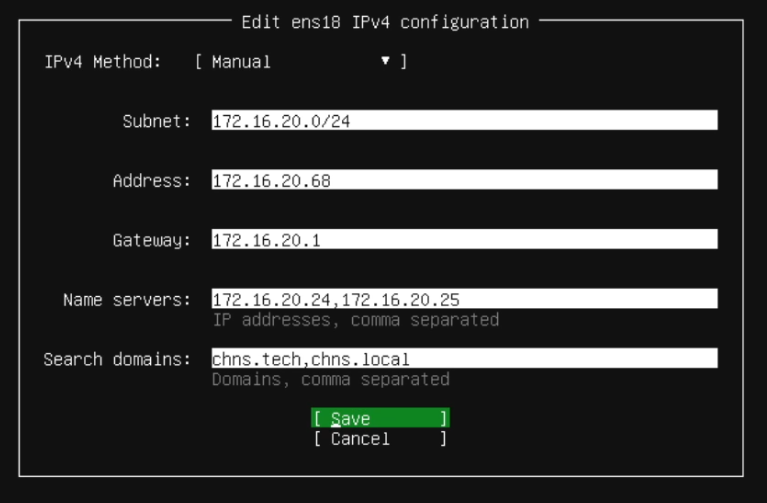
On the configuration page, enter in the following information based on your network:
- Subnet – Enter the subnet for the network you are connected to. This outlines the whole network so the last number will probably be zero followed by a “/” and the subnet mask for the network. If you need help figuring this out, check your router configuration or search online to find the right mask.
- Address – This will be the exact IP address of the server.
- Gateway – This is the IP address of the router interface for the network the server is connected to.
- Name servers – These will be the IP addresses of the DNS servers you want to use. You can enter more than one DNS server, just separate them with a “,”.
- Search domains – This is optional. If you don’t know what yours is or don’t have one setup, just leave it blank.
Arrow down to “Save” and press “Enter”.
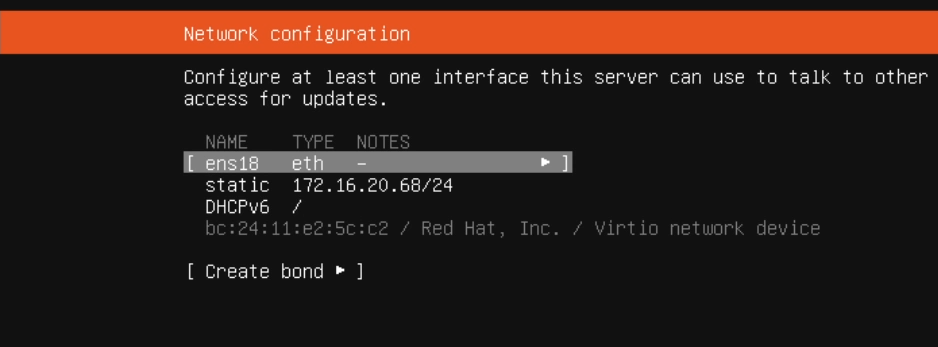
The server will take you back to the “Network configuration” screen where you should now see the static IP address you set under the interface name. Arrow down to “Done” and press “Enter” to proceed.
One thing I believe has changed with 26’s installer is that IPv6 is enable by default. It will try to find a DHCP address at the main Network Configuration screen unless you go in and disable it.
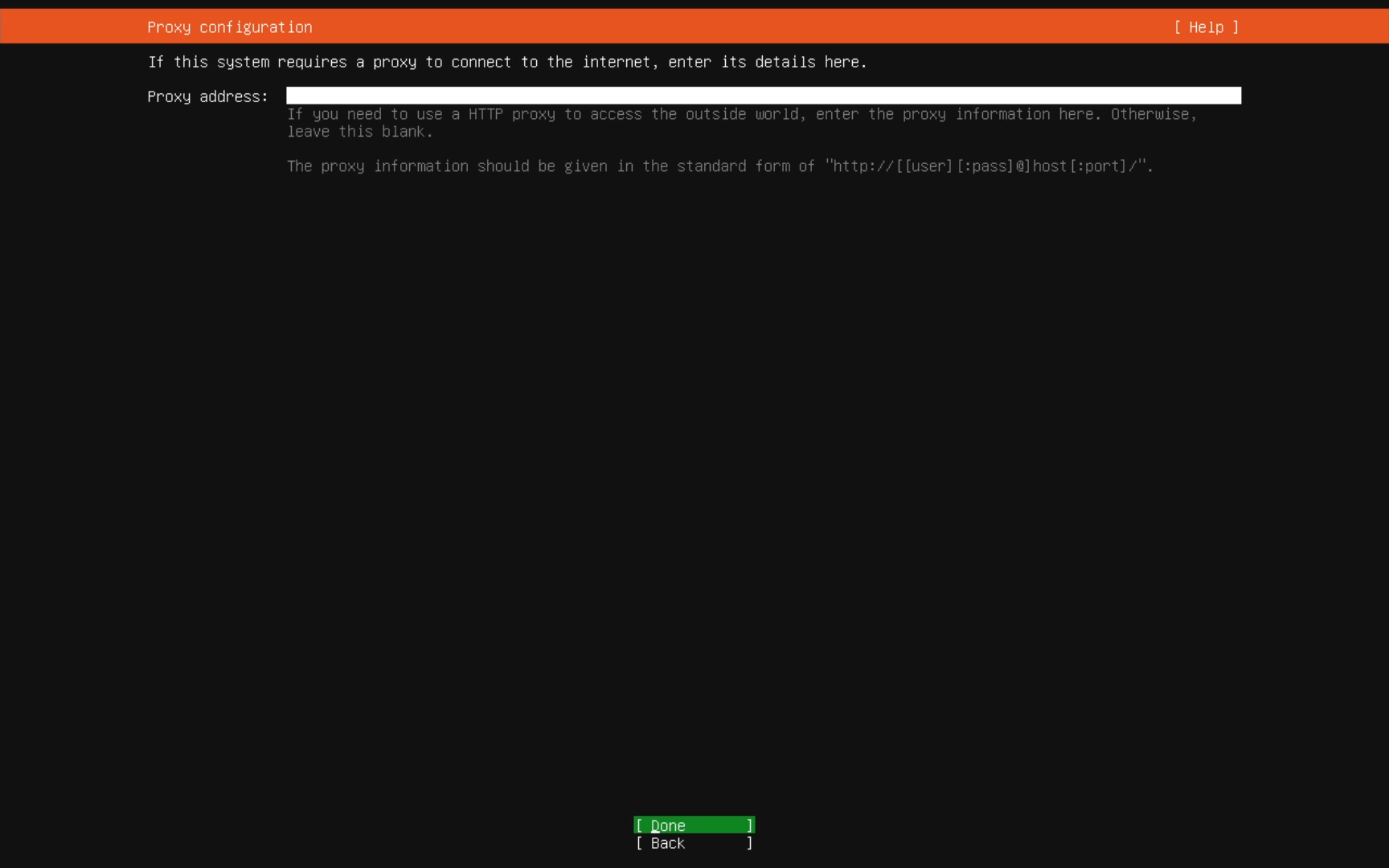
On the “Proxy configuration” screen, this is another optional field. If you don’t have one, arrow down to “Done” and press “Enter” to proceed.
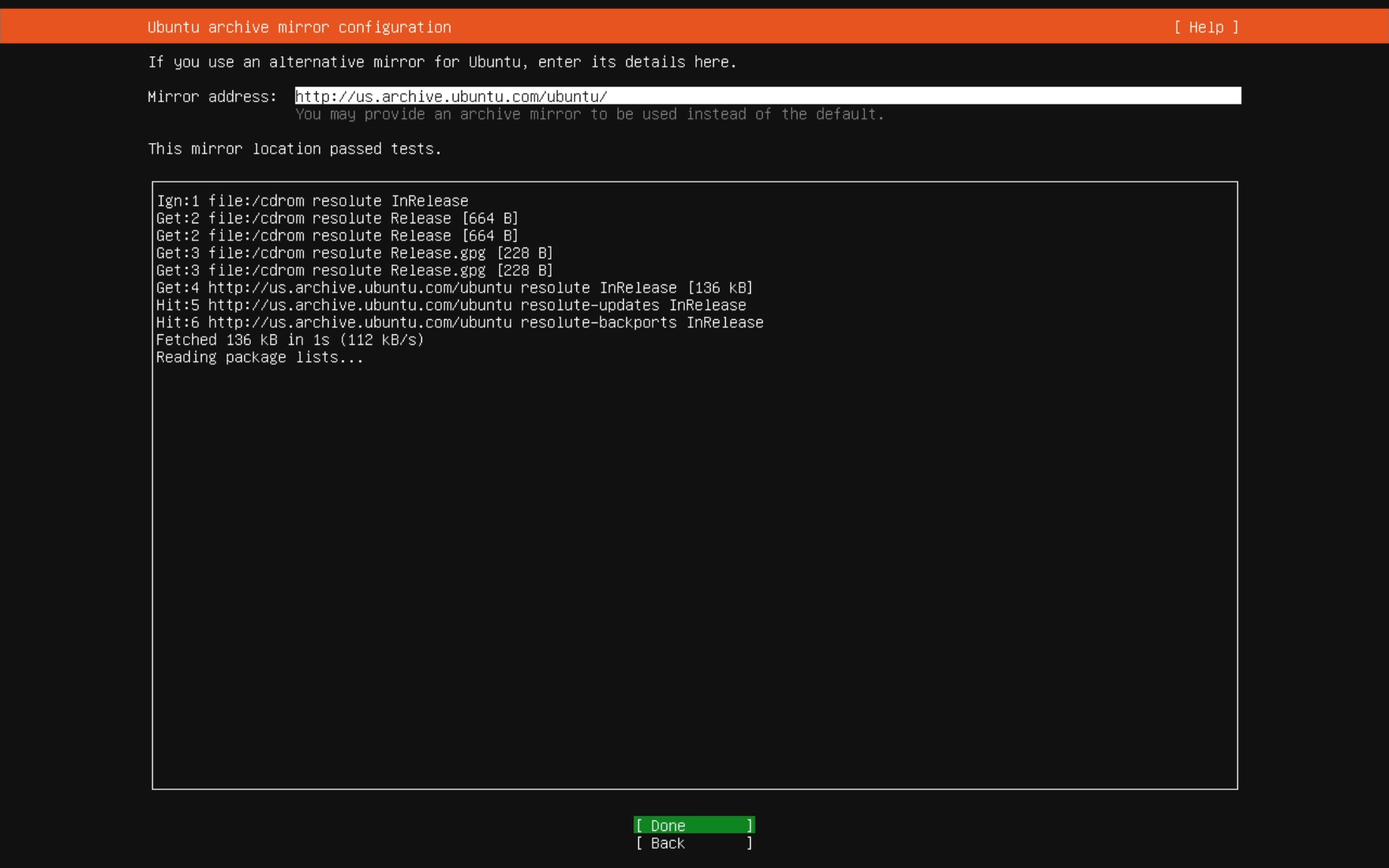
On the “Configure Ubuntu archive mirror” screen, the default URL is fine unless you want to change it to a mirror you know and want to use. Arrow down to “Done” and press “Enter” to proceed.
Assuming all your network configurations are correct and the server has access out to the Internet, it will run a test to verify that it can see and fetch information from the mirror server. When you see “This mirror location passed tests.” directly under the address, you are ready to continue with the install. If you get an error, you will want to check your network configuration unless the server isn’t suppose to have Internet access.
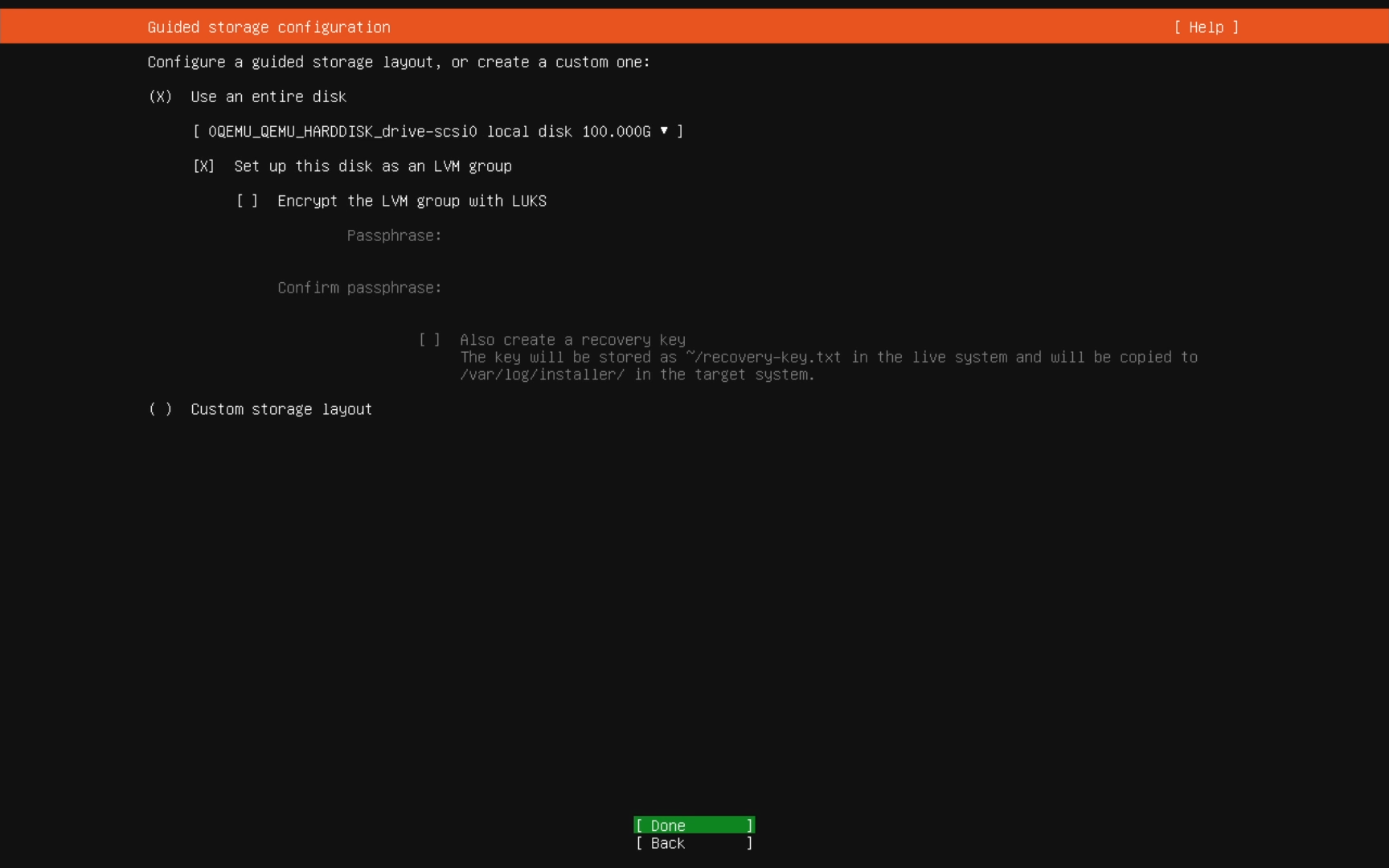
On the “Guided storage configuration” screen, I usually keep “Use an entire disk” selected and set the disk to the drive I want to boot the OS from. Here you can also choose to encrypt the drive if that is a requirement for this server.
Linux disk partitioning can be confusing if you don’t know what you are doing so I recommend just letting the installer make the partitions instead of doing a “Custom storage layout”.
Arrow down to “Done” and press “Enter” to proceed.
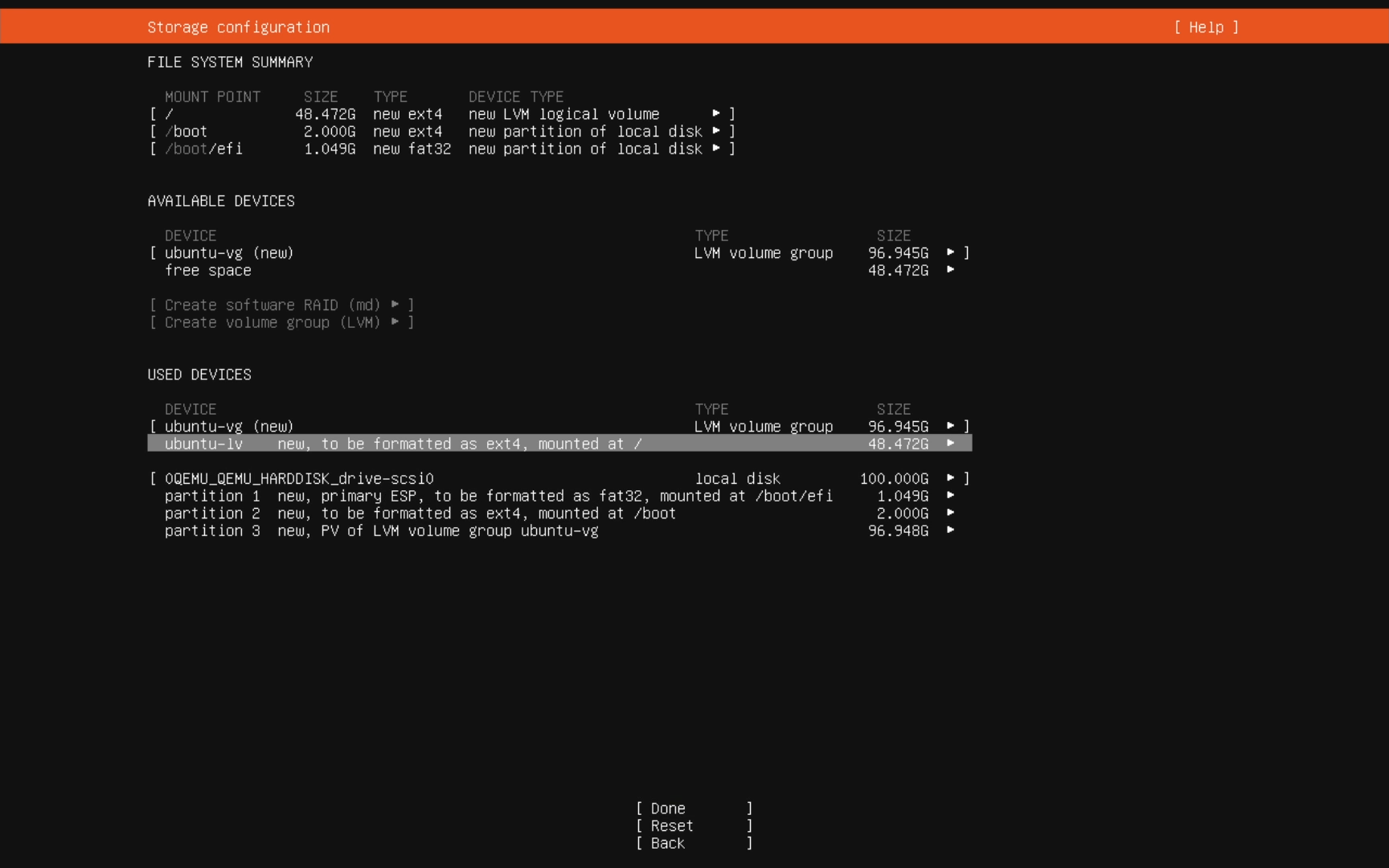
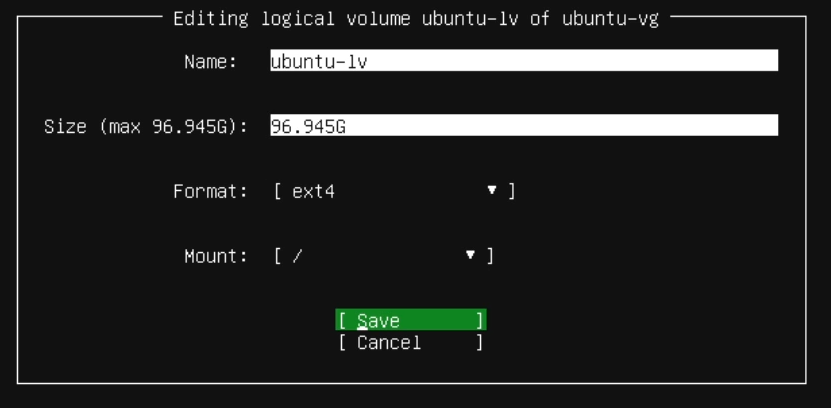
The system will now look at your drive and figure out the best partition layout. One thing I noticed after doing a few of these installs is it doesn’t by default use 100% of the drive space available. We will want to edit the “ubuntu-lv” by highlighting it and pressing “Enter”.
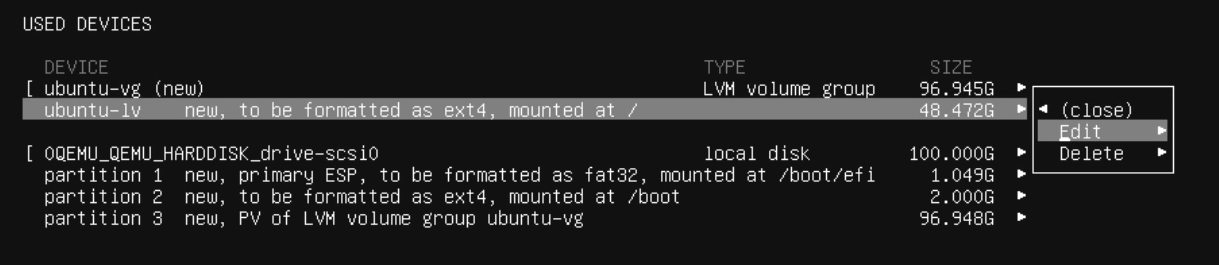
Highlight “Edit” and press “Enter”.
Now arrow down to the “Size” field and make it match the “max” size of the available space. Make sure you add the “G” at the end of the number. Arrow down to “Save” and press “Enter” when finished.
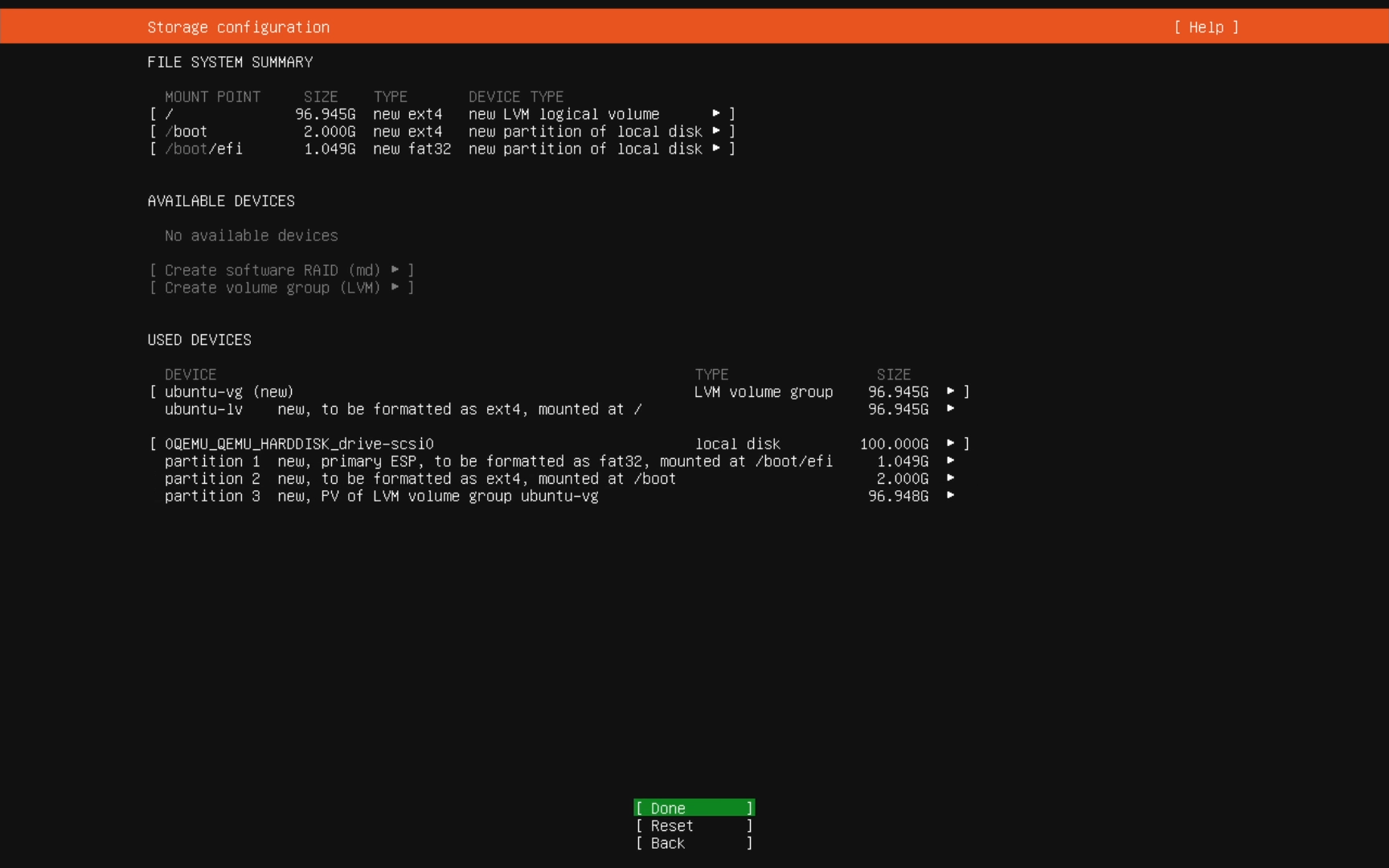
Back on the “Storage configuration” screen, look everything over and confirm that it’s using the max amount of drive space to match the “ubuntu-vg”. Arrow down to “Done” and press “Enter” to continue.
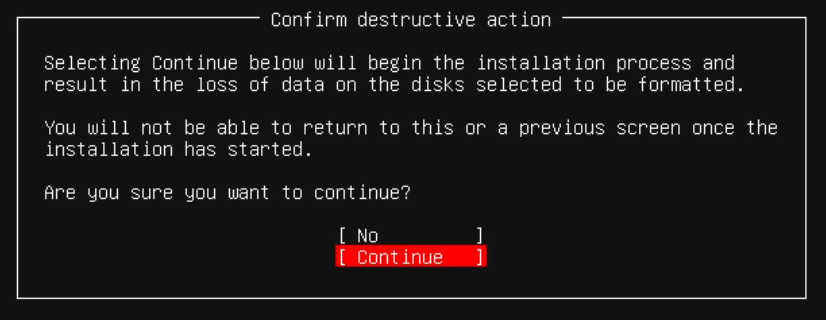
The installer will now pop up a caution message about destroying all the existing data on the drive. Confirm you want to continue by selecting “Continue”.
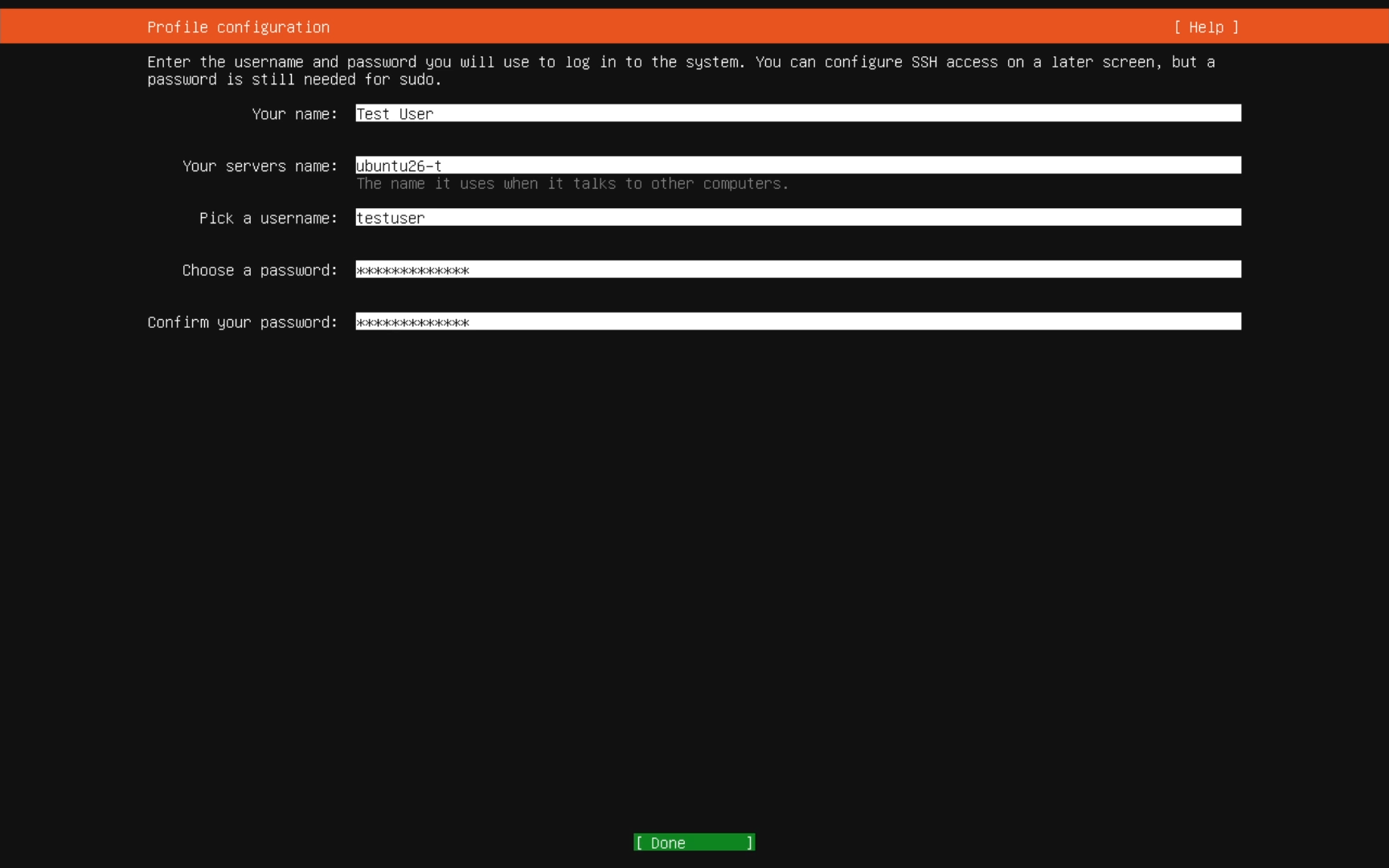
On the “Profile configuration” screen, enter the server and user information for logging into the server:
- Your name – this can be anything you want to use to describe your main user.
- Your server’s name – this is the name of the server that will be linked with the DNS information for communicating with the server.
- Pick a username – this is the actual username you will enter when logging into the server.
- Choose a password & Confirm your password – enter the password you want for the user account when logging in.
Arrow down to “Done” and press “Enter” to proceed.
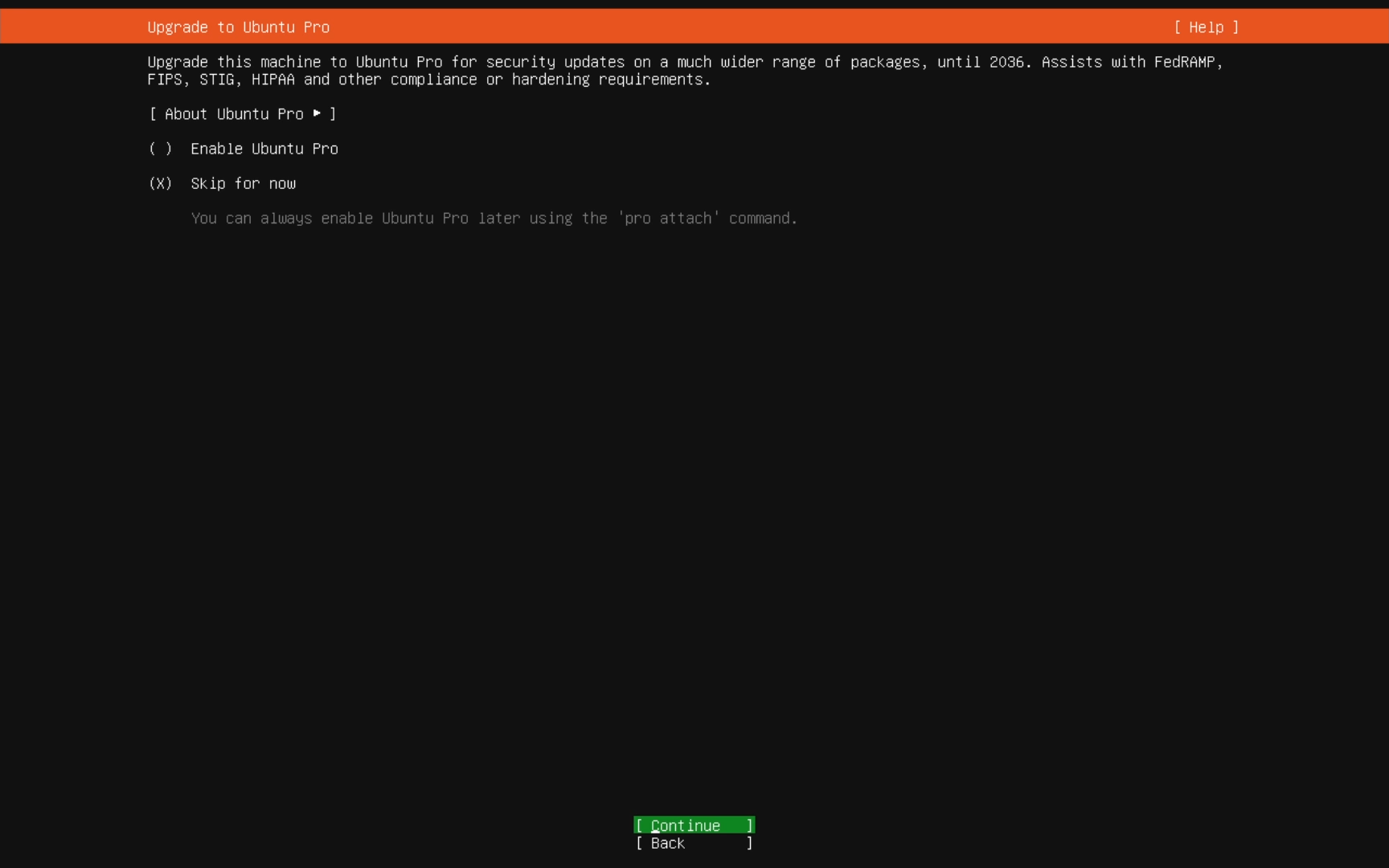
The next screen will give you information on “Upgrade to Ubuntu Pro”. Ubuntu Pro gives you better Enterprise level support and enhanced security for your server. You can read all about Pro. I don’t use Pro so I just leave it on “Skip for now” and “Continue”.
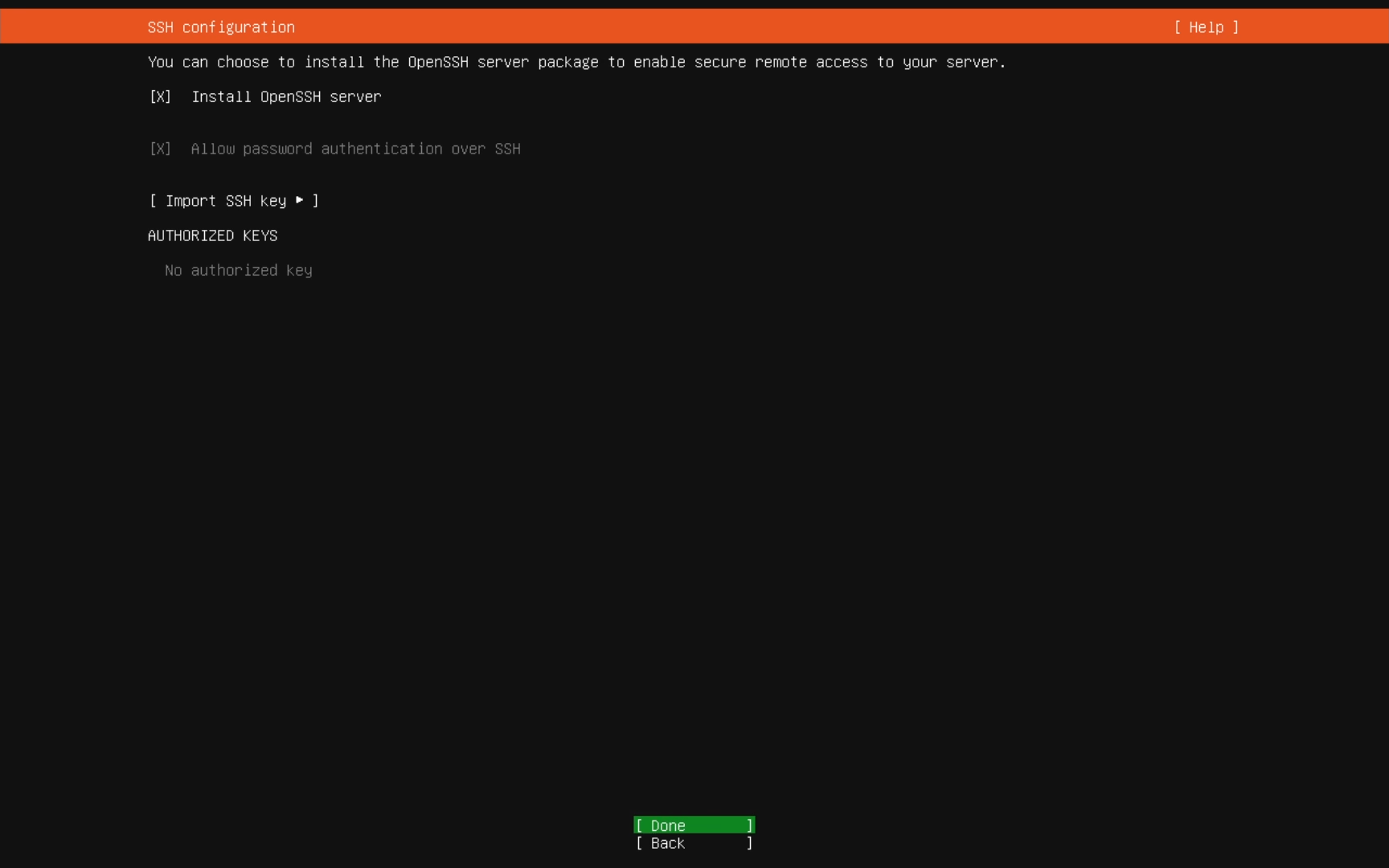
On the “SSH configuration” screen, you can choose to install SSH on this server for remote login. I always do this on new servers because it’s my preferred way of accessing the server. Also, it’s a lot easier to install it now then try do it after the fact.
Check the box next to “Install OpenSSH server”. If you want to Import a SSH key to better secure your connection, you can do that here also if you choose.
Arrow down to “Done” and press “Enter” to proceed.
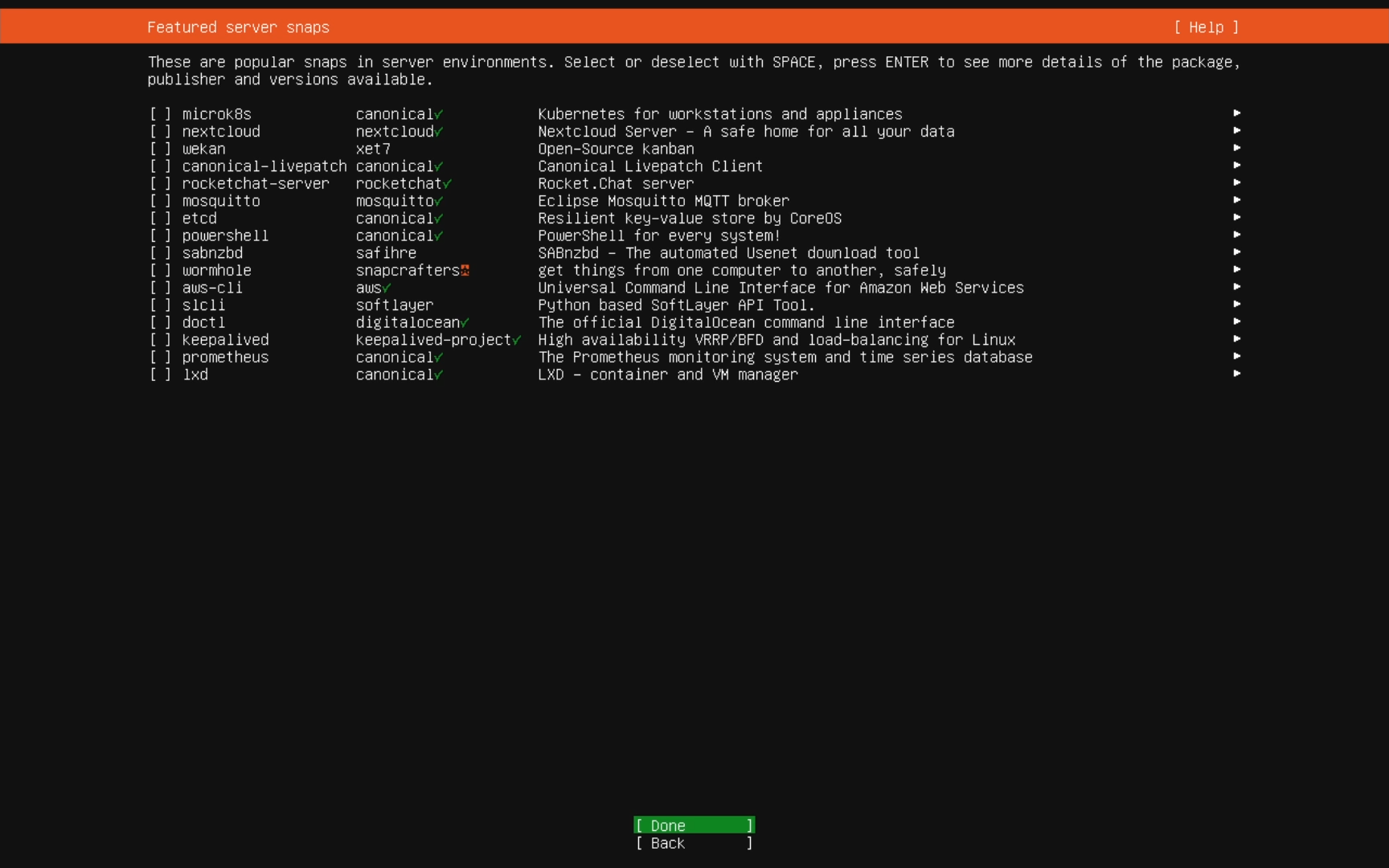
On the “Featured Server Snaps” screen, you can select applications to be installed during the OS install process. I don’t usually use this option even if I’m going to be installing an application listed because I prefer to control the install process. Arrow down to “Done” and press “Enter” to proceed.
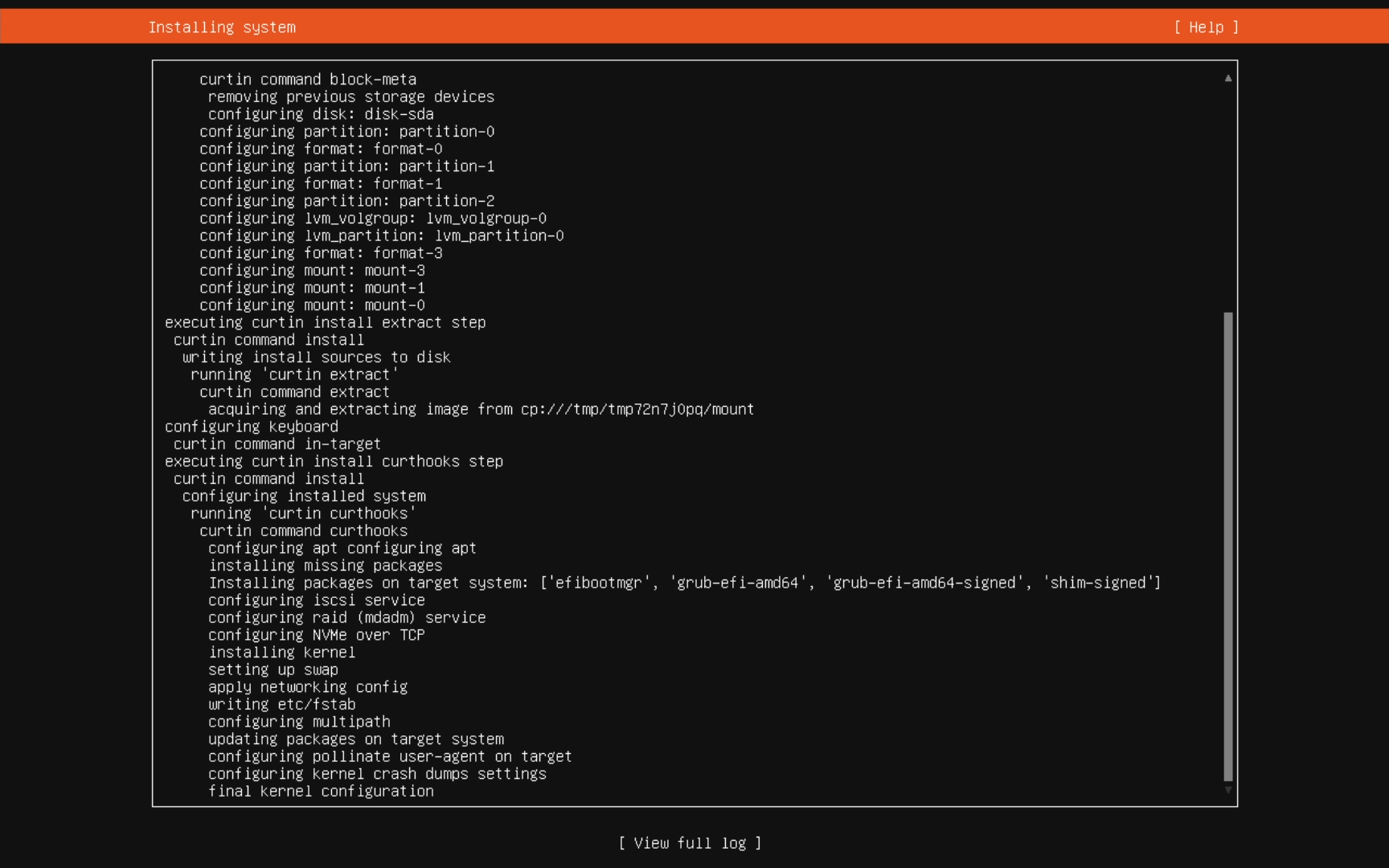
Once you get to the “Installing system” screen, at this point the server OS is being written to your drive. Simply let it process and download any updates it needs.
Once the title changes to “Installation complete!”, your server is all installed and ready to use. Arrow down to “Reboot Now” to do a full system restart.
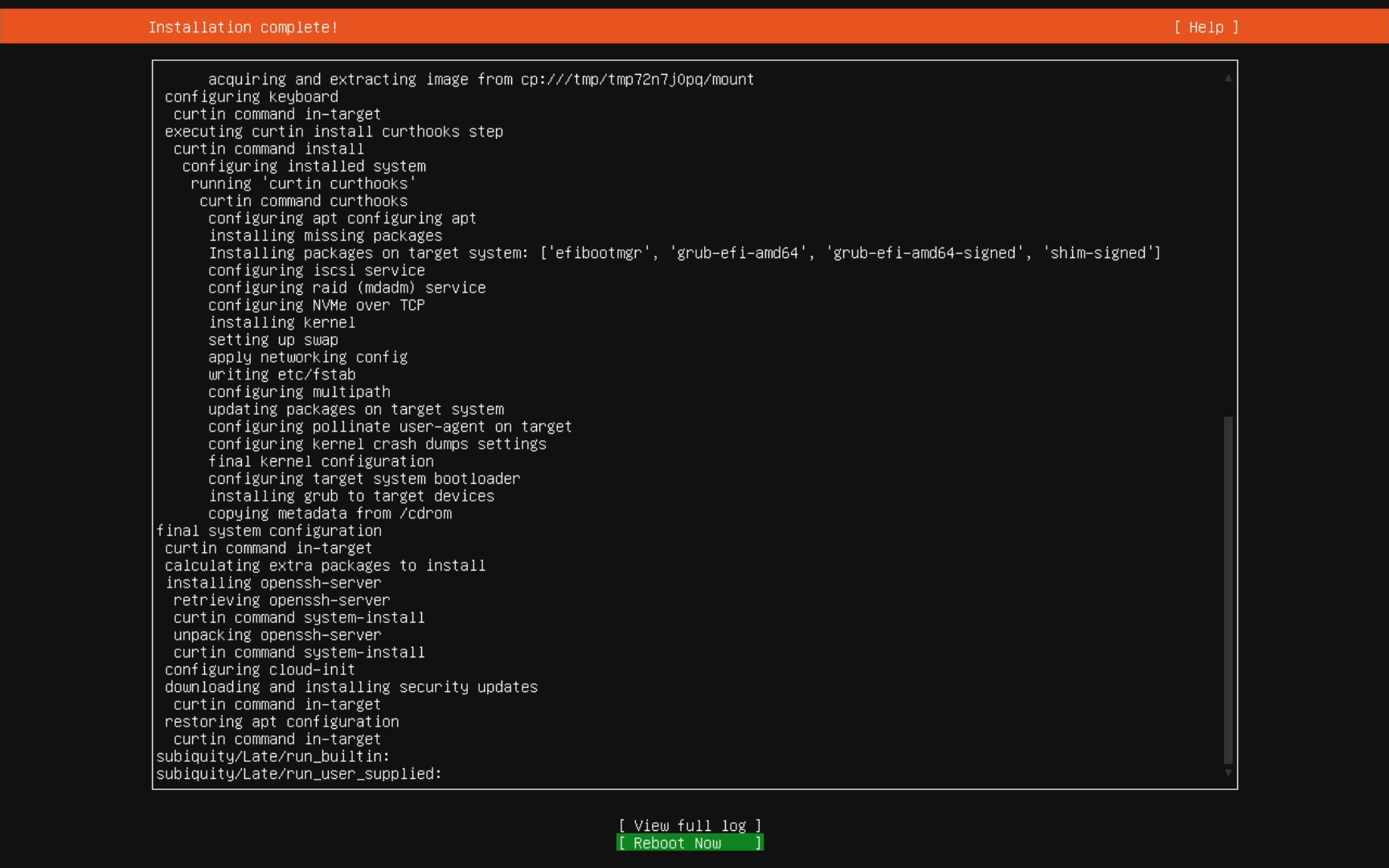
Once it has finished its shutdown process, you should see a prompt to “Please remove the installation medium, then press ENTER”. At this point you will want to unmount the ISO file from the server or remove the USB drive from the server. Then press “Enter” to finish the reboot process.

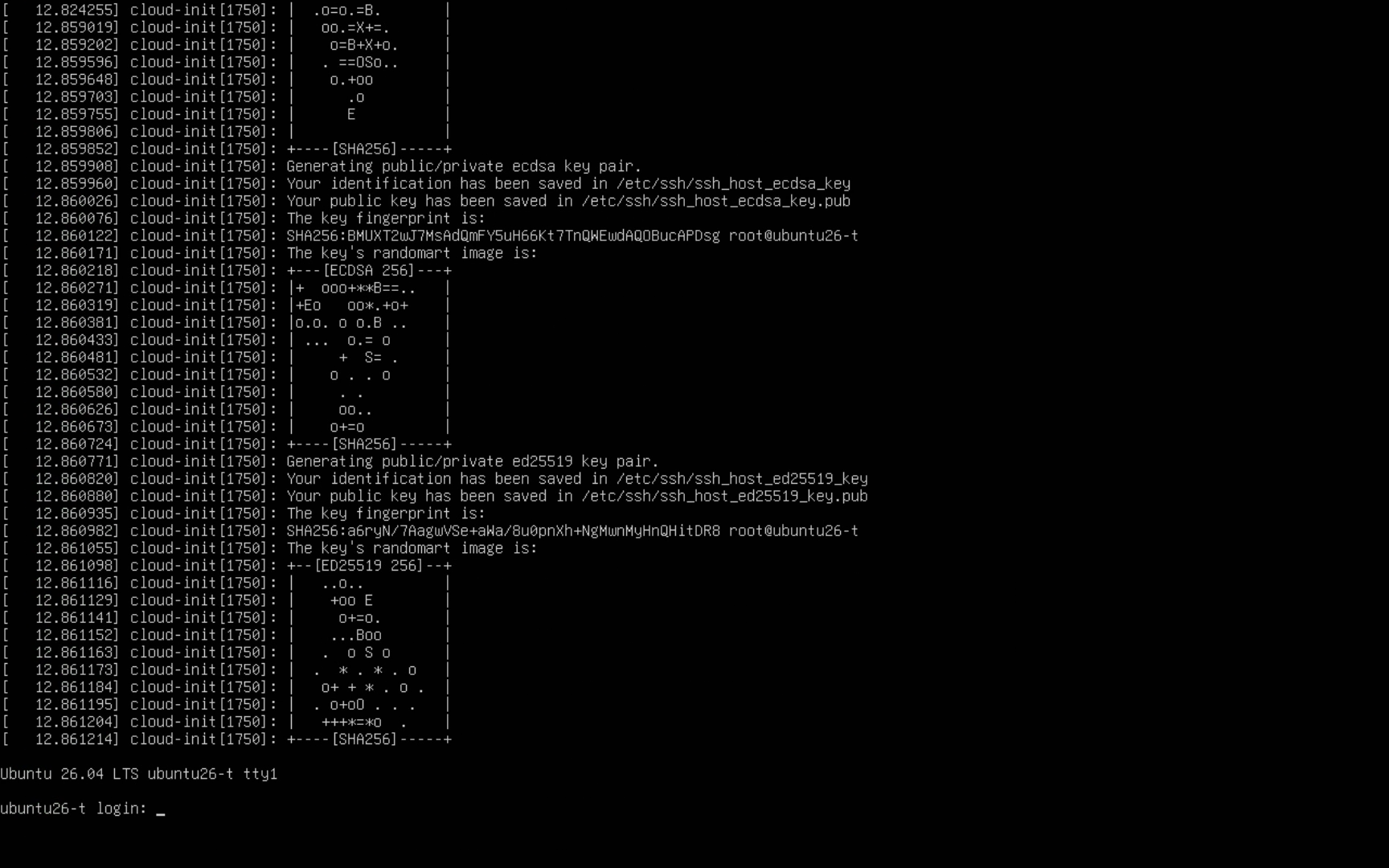
After the server boots off the disk you installed the OS, you should see something that looks like the message below if you installed SSH. Press “Enter” to get the login prompt. Login with the username and password you set on the “Profile configuration” screen.
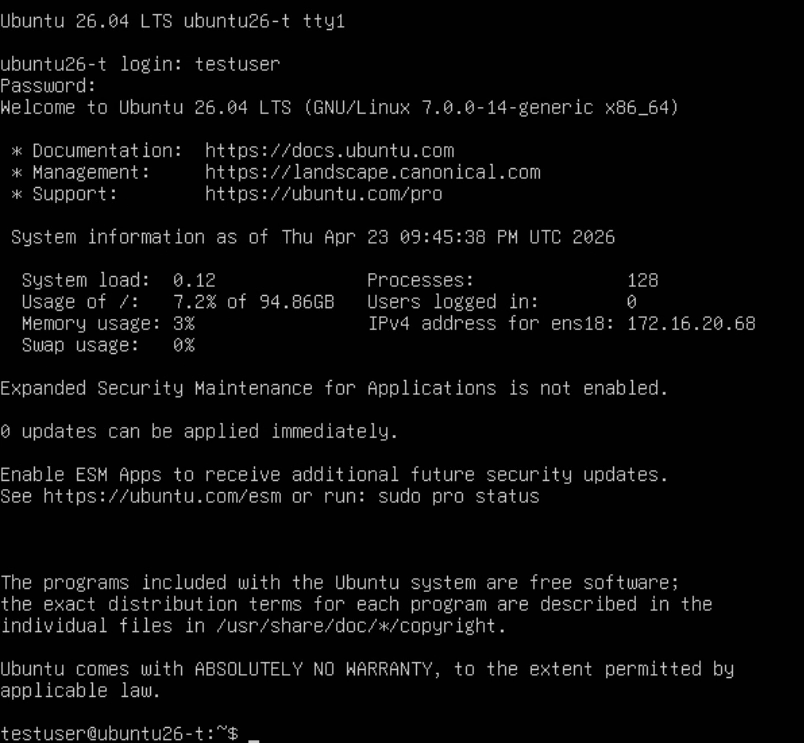
Once you login, you should see a screen similar to below. Your server is now installed and ready for you to deploy applications, Docker containers, Websites or whatever you want to use it for.
You may notice that even though the server updated during installation, you may still have updates ready to be installed. You can use the following command to update the package index, install the available upgrades and then reboot the server all in one command.
sudo apt update && sudo apt upgrade -y && sudo reboot now
Conclusion
Ubuntu Server 26.04 LTS is a solid choice for anyone running servers in a homelab or production environment. The installer is straightforward and gets you up and running quickly without a lot of friction. Once you’ve got the OS installed and updated, you’re ready to start deploying whatever you need on top of it.
If you’re looking for more guides and content around Ubuntu Server 26.04, check out my Ubuntu Server 26.04 LTS — My Content Hub article where I’ll be rounding up everything I’m publishing on 26.04 this week.