This article is based on an old article I wrote back in 2023 on the same subject. Hopefully this article, with my experience in technology and writing, will be more helpful.
A while back I came across a post from MariusHosting about a self-hosted Docker container called IT Tools, built by CorentinTh. After checking out the demo site, I was immediately sold. It brings together 86 developer utilities into one clean, searchable web interface — tools I’d normally have to hunt down individually online.
I’m running my own instance at ittools.chns.tech if you want to see it in action before deploying your own.
What Is IT Tools?
IT Tools is a collection of browser-based utilities aimed at developers and IT professionals. Everything runs client-side — there’s no backend, no database, and no data sent anywhere. It’s built with Vue 3 and TypeScript, packaged into a tiny Docker image (~20 MB), and designed to be deployed behind a reverse proxy like Nginx or Traefik.
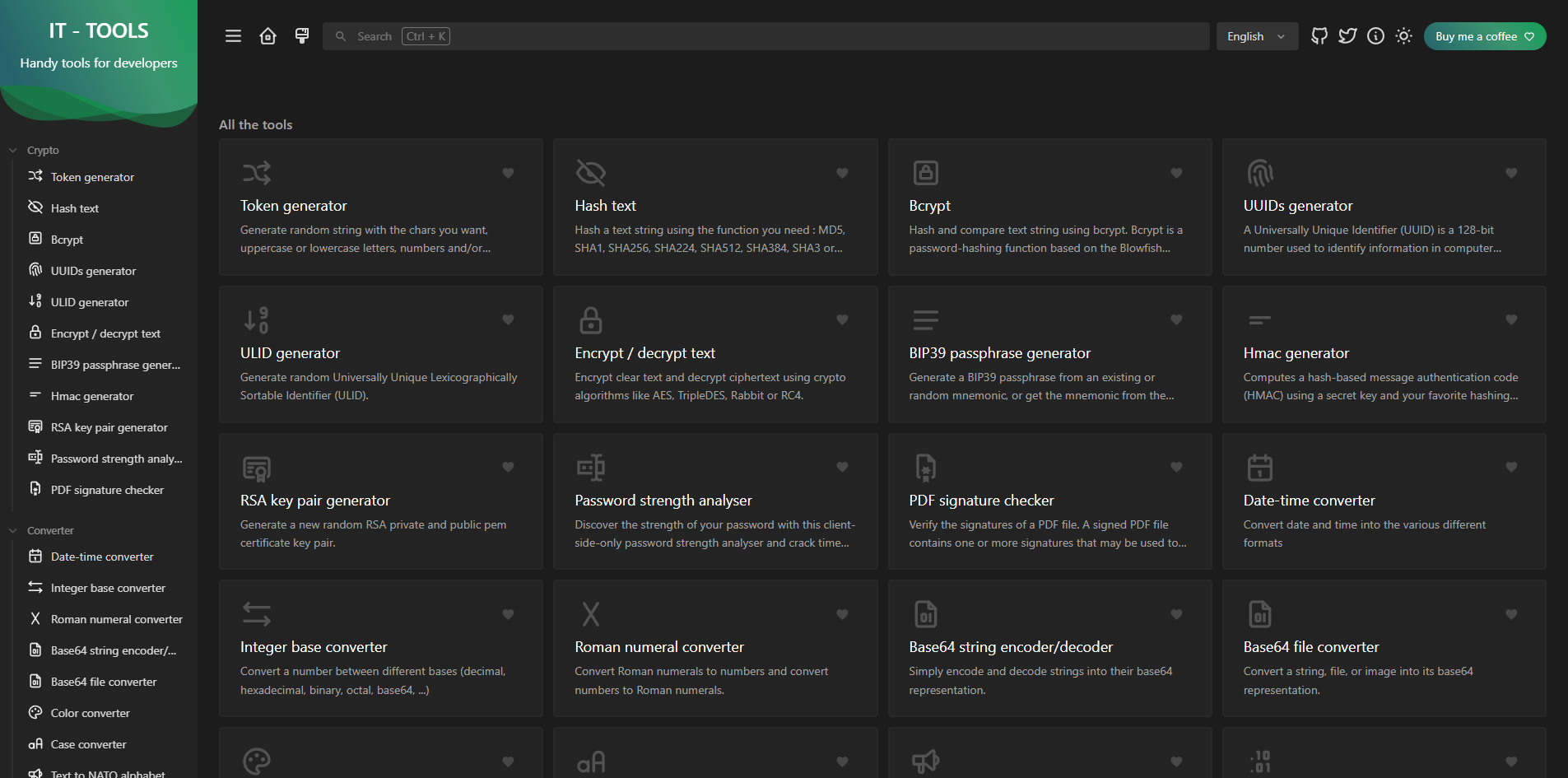
The Tools — All 86 of Them
The tools are organized into 10 categories. Here’s a breakdown of what’s available:
Crypto (11 tools)
Security and hashing utilities: Token Generator, Hash Text, Bcrypt, UUID Generator, ULID Generator, Encryption/Decryption, BIP39 Passphrase Generator, HMAC Generator, RSA Key Pair Generator, Password Strength Analyser, and PDF Signature Checker.
Converter (20 tools)
The largest category. Covers: Date-Time Converter, Integer Base Converter, Roman Numeral Converter, Base64 String and File Converters, Color Converter, Case Converter, Text to NATO Alphabet, Text to Binary, Text to Unicode, YAML ↔ JSON ↔ TOML conversions, List Converter, XML ↔ JSON, and Markdown to HTML.
Web (16 tools)
Anything web-dev related: URL Encoder/Decoder, HTML Entities, URL Parser, Device Information, Basic Auth Generator, Meta Tag Generator, OTP Code Generator, MIME Types reference, JWT Parser, Keycode Info, Slugify String, HTML WYSIWYG Editor, User Agent Parser, HTTP Status Codes reference, JSON Diff, and Safelink Decoder.
Development (14 tools)
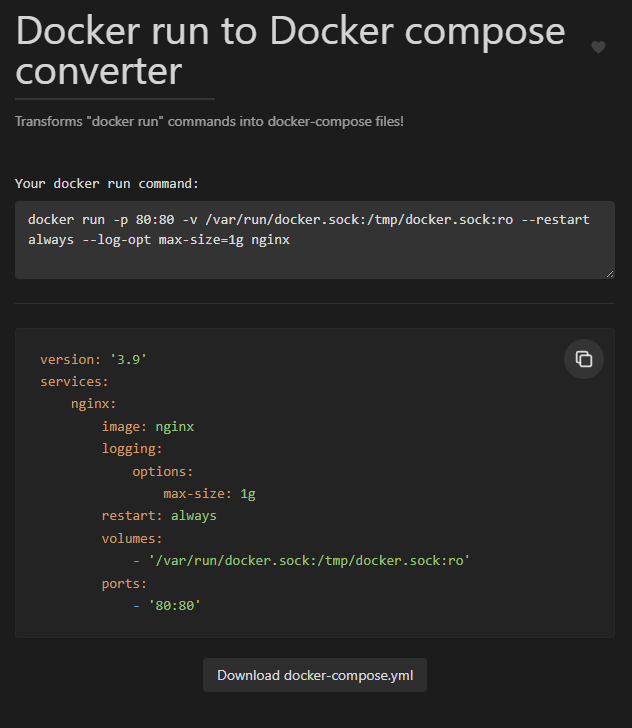
Day-to-day dev tools: Git Memo, Random Port Generator, Crontab Generator, JSON Viewer/Minifier/to CSV, SQL Prettify, Chmod Calculator, Docker Run to Docker Compose Converter, XML Formatter, YAML Viewer, Email Normalizer, Regex Tester, and Regex Memo.
The Docker Run to Compose converter alone has saved me more than a few minutes — paste a docker run command and get a clean compose.yml back instantly.
Network (6 tools)
Networking utilities: IPv4 Subnet Calculator, IPv4 Address Converter, IPv4 Range Expander, MAC Address Lookup, MAC Address Generator, and IPv6 ULA Generator.
Images and Videos (4 tools)
QR Code Generator, WiFi QR Code Generator, SVG Placeholder Generator, and Camera Recorder.
Math (3 tools)
Math Evaluator, ETA Calculator, and Percentage Calculator.
Measurement (3 tools)
Chronometer, Temperature Converter, and Benchmark Builder.
Text (7 tools)
Lorem Ipsum Generator, Text Statistics, Emoji Picker, String Obfuscator, Text Diff, Numeronym Generator, and ASCII Text Drawer.
Data (2 tools)
Phone Parser and Formatter, and IBAN Validator and Parser.
Using the Interface
The UI is clean and minimal. The main content area lists all tools as cards with a search bar at the top — start typing and results filter instantly. The left sidebar organizes the same tools by category, making it easy to browse when you’re not sure exactly what you’re looking for.

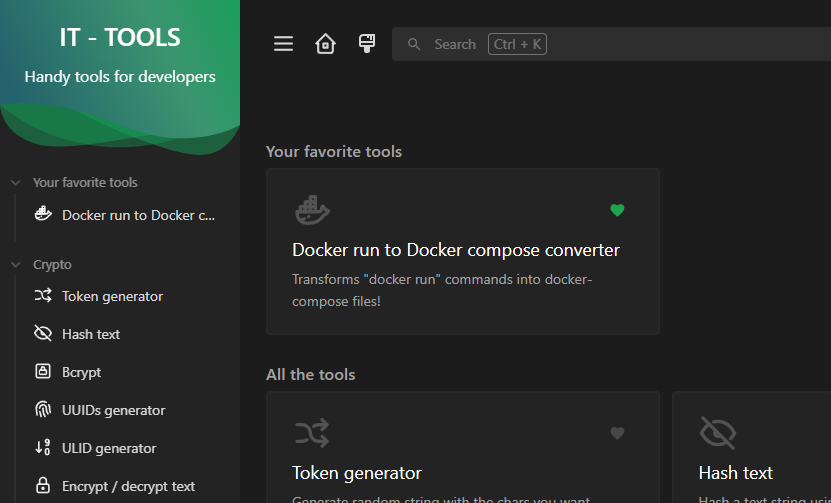
Tools that you use frequently can be favorited and will appear at the top of the list. The whole thing is responsive, so it works fine on mobile too.
Deployment
The image is available on Docker Hub and GitHub Container Registry. Here’s the compose file I use, also available in my Docker Compose repository on Gitea:
services:
    app:
        image: corentinth/it-tools:latest
        ports:
            - ${IT_TOOLS_PORT}:80
        restart: unless-stopped
What to change:
- IT_TOOLS_PORT – Define this in a
.envfile alongside your compose file. It’s the port used to reach the web interface.
That’s all there is to it. No volumes, no database. Once the container is up, navigate to http://<your-docker-host>:<port> and you’re in.
If you’re running a reverse proxy, point it at the container on port 80 and serve it over HTTPS like any other web app. That’s exactly how my instance at ittools.chns.tech is set up.
Why Self-Host It?
The official demo at it-tools.tech is publicly available and perfectly usable. But self-hosting gives you a few advantages:
- Always available — no dependency on someone else’s uptime
- LAN access — useful in environments where outbound internet access is restricted
- Privacy — even though IT Tools is client-side only, keeping it internal adds a layer of comfort when working with sensitive values like tokens or private keys
- Speed — serving it locally or on your LAN is noticeably faster than hitting an external site
Given how lightweight the image is, there’s very little reason not to spin it up alongside your other self-hosted services.
Wrap Up
IT Tools is one of those projects that earns a permanent spot in any self-hosted stack. It’s small, useful, well-built, and keeps getting better. CorentinTh has done a great job building something the community clearly values — 37k+ stars don’t lie.
Check out my live instance at ittools.chns.tech, or head to the references below to deploy your own.