Overview:
I had to do a lot of file transfers lately because we are moving/upgrading file servers. One of the things I wanted to make sure didn’t break doing server to server transfers is Windows File Permissions. I know there are a few third party tools that can transfer theses settings but I wanted to keep it simple and able to be scripted. A lot of people don’t know/remember that Windows Server has a pretty good file transfer tool built into the command line…XCopy. After a little research, I figured out exactly what I needed. This post will show how to run the command and what the flags do.
The Command:
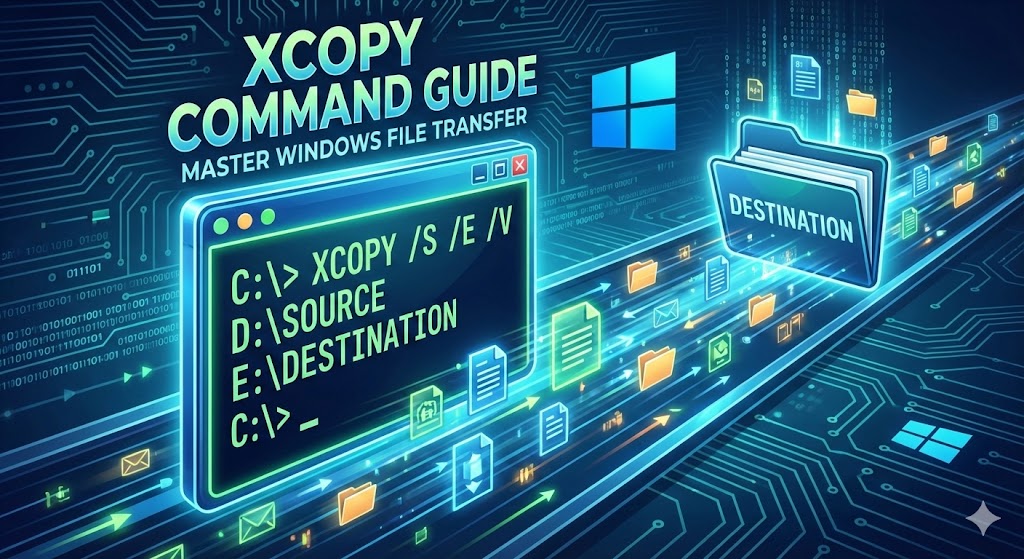
Xcopy “source” “destination” /O /X /E /H /K /C
Source = This defines the files or top level folder that you want to copy from. The source is the only required parameter in the xcopy command. Use quotes around source if it contains spaces.
Destination = This option specifies the location where the source files or folders should be copied to. If no destination is listed, the files or folders will be copied to the same folder you run the xcopy command from. Use quotes around destination if it contains spaces.
/O = Retains ownership and Access Control List (ACL) information in the files written in destination.
/X = This option copies file audit settings and System Access Control List (SACL) information. You imply /o when you use the /x option.
/E = When used alone or with /s, this option is the same as /s but will also create empty folders in destination that were also empty in source. The /e option can also be used together with the /t option to include empty directories and sub directories found in source in the directory structure created in destination.
/H = The xcopy command does not copy hidden files or system files by default but will when using this option.
/K = Use this option when copying read-only files to retain that file attribute in destination.
/C = This option forces xcopy to continue even if it encounters an error.
How to run it:
(Note: Some of the file transfer I did took over 24 hours to complete so in order to mitigate any errors or potential issues, I added a few steps to the process. Some of it is overkill but I didn’t want to risk it. Also, I prefer to pull the documents from the old share to the new server. This allows me to make any changes I need to make after the files are copied but before the new share is live.)
-
Make sure the files that you want to pull onto the new server are being shared and available to the new server.
-
Login to your new server with an Administrator account.
-
Map a drive to the old file share onto this new server.
-
Launch a Command Prompt, as Administrator, on the new server.
-
Enter the XCopy command and press “Enter” (Ex. C:> xcopy “z:(source folder)” “d:(destination folder)” /O /X /E /H /K /C ).
-
Wait until the transfer finishes and the prompt comes back up.
After it finished the transfer, you will want to make sure all files and permissions transferred correctly.